

Every app on your phone asks for something: your location, your photos, your contacts, your microphone. Understanding Android app permissions is the key to staying in control of that access, because permissions decide exactly what each app can see and do on your device. Android app permissions are not just technical fine print — they are the locks on your personal data, and learning how they work takes only a few minutes. This guide explains Android app permissions in plain language: what each type means, which requests should worry you, and how to review and change permissions so your apps serve you without spying on you.
What Are Android App Permissions?
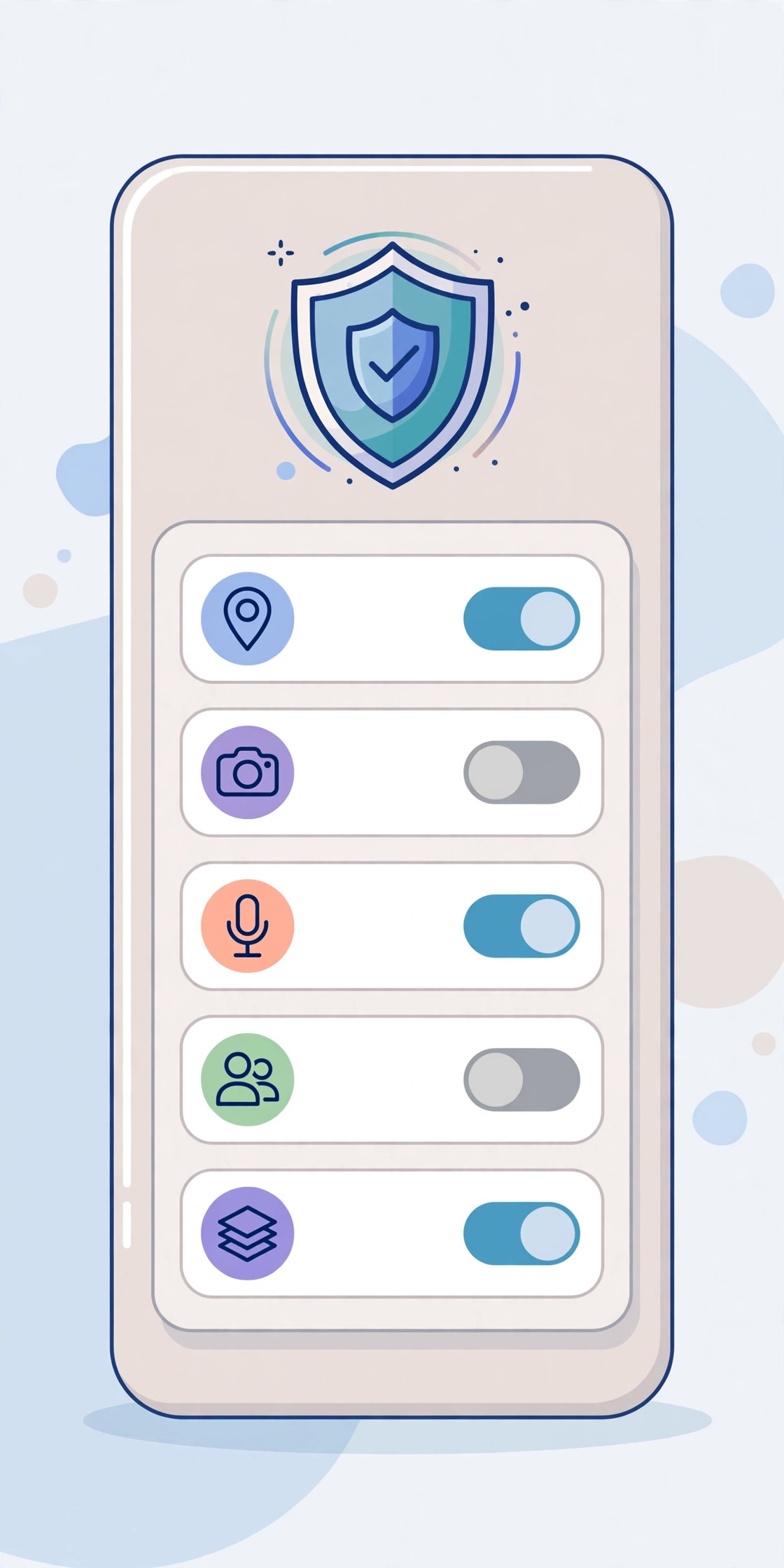
Android treats your phone as a set of protected resources, and apps must ask before using them. Permissions cover sensitive areas such as your camera, microphone, location, contacts, calendar, files, and body sensors. When you install or first use an app, Android shows a request explaining what it wants and why. You can allow or deny each request individually, which means you are never forced into an all-or-nothing choice: a messaging app can have microphone access for voice notes while being denied access to your contacts, for example.
Modern Android versions have made this control much finer. Many permissions can now be granted only while the app is in use, or as a one-time permission that expires when you close the app. Location is a good example: you can let a maps app see your precise location while navigating, a delivery app see only your approximate area, or a game see nothing at all. These options exist because different apps genuinely need different levels of access, and Android app permissions are designed to match access to real need rather than handing every app the keys to everything.
The Permissions That Deserve Extra Attention
Some permissions are more sensitive than others, and they deserve a second thought before you approve them. Location tracking reveals where you live, work, and travel. Microphone and camera access can capture private moments. Contacts and call logs expose your relationships. SMS access can read verification codes, which is why it is now heavily restricted. Accessibility access is the most powerful of all: it can read your screen and act on your behalf, so it should only ever go to apps you deeply trust, such as a reputable password manager or a screen reader you rely on.
A useful rule of thumb is to match the permission to the app’s job. A torch app has no business reading your contacts. A photo editor needs your photos, but not your location. A ride-hailing app needs location while you book, but not in the background all day. When a request does not match the job, deny it — the app will usually still work, and if it genuinely needs the access it will explain why when you try the relevant feature. Staying alert to mismatched requests is one of the simplest ways to protect yourself, much like checking a source before installing anything, a habit our guide on how to download APK safely covers in detail.
How to Review and Change Permissions
Reviewing your permissions takes less than ten minutes and is worth doing every few months. Open Settings, then Privacy, then Permission Manager, where you will see every permission grouped together with the apps that hold it. Tap any permission to see which apps have it, and change any grant you no longer trust. You can also long-press an app icon, tap App info, and review its permissions one by one from there.
Pay special attention to apps you rarely use. An app you opened once six months ago may still hold location or microphone access in the background. Android now auto-resets permissions for unused apps, but a manual check is still worthwhile. While you are in Settings, look at the special access section too: apps with permission to draw over other apps, modify system settings, or install unknown apps deserve scrutiny, because these powers are occasionally abused by aggressive adware. Removing an unused app entirely is the cleanest option of all — no app, no access.
A Quick Permission Audit Checklist
- Location: allow only while using the app, and only for apps that need it.
- Camera and microphone: grant to camera, messaging, and video apps you trust — deny the rest.
- Contacts and calendar: keep these limited to communication and productivity apps.
- Background access: turn off background location and microphone for everything except essentials.
- Unused apps: remove permissions, or uninstall the app if you no longer need it.
Permissions, Privacy, and Children
If children use your phone or their own Android device, permissions matter even more. Games aimed at children sometimes request advertising identifiers, location, or contact access that has nothing to do with gameplay. Use family controls to approve installs, review permissions together, and prefer apps with clear, child-friendly privacy policies. Teaching children to pause at a permission prompt — and to ask an adult when unsure — is a digital safety skill as important as any other, and it builds habits that protect them for life.
The same caution applies to apps you install outside the official store. Sideloaded apps bypass some of the store’s screening, so their permission requests deserve even closer reading. If a sideloaded game asks for SMS, contacts, and device administration together, that combination is a red flag, not a coincidence. When in doubt, do not install it, and check the APK Games category here for safer, well-reviewed alternatives that respect your privacy.
What About Data Beyond Permissions?
Permissions control access to your device, but apps also collect data through their own servers: accounts, analytics, and advertising profiles. Reading a privacy policy is tedious, but a quick scan for how long data is kept and whether it is sold to third parties tells you most of what you need. Prefer apps that let you delete your account and data easily, and use Android’s privacy dashboard to see which apps accessed sensitive permissions recently — a quiet app that used your microphone at 3 a.m. is worth investigating.
Conclusion
Android app permissions put you in charge, but only if you use them. Approve what matches the app’s job, deny what does not, audit your grants every few months, and remove apps you no longer use. A few minutes of attention turns your phone from an open house into a well-locked home — and once the habit is set, checking a permission prompt becomes as automatic as locking your front door.