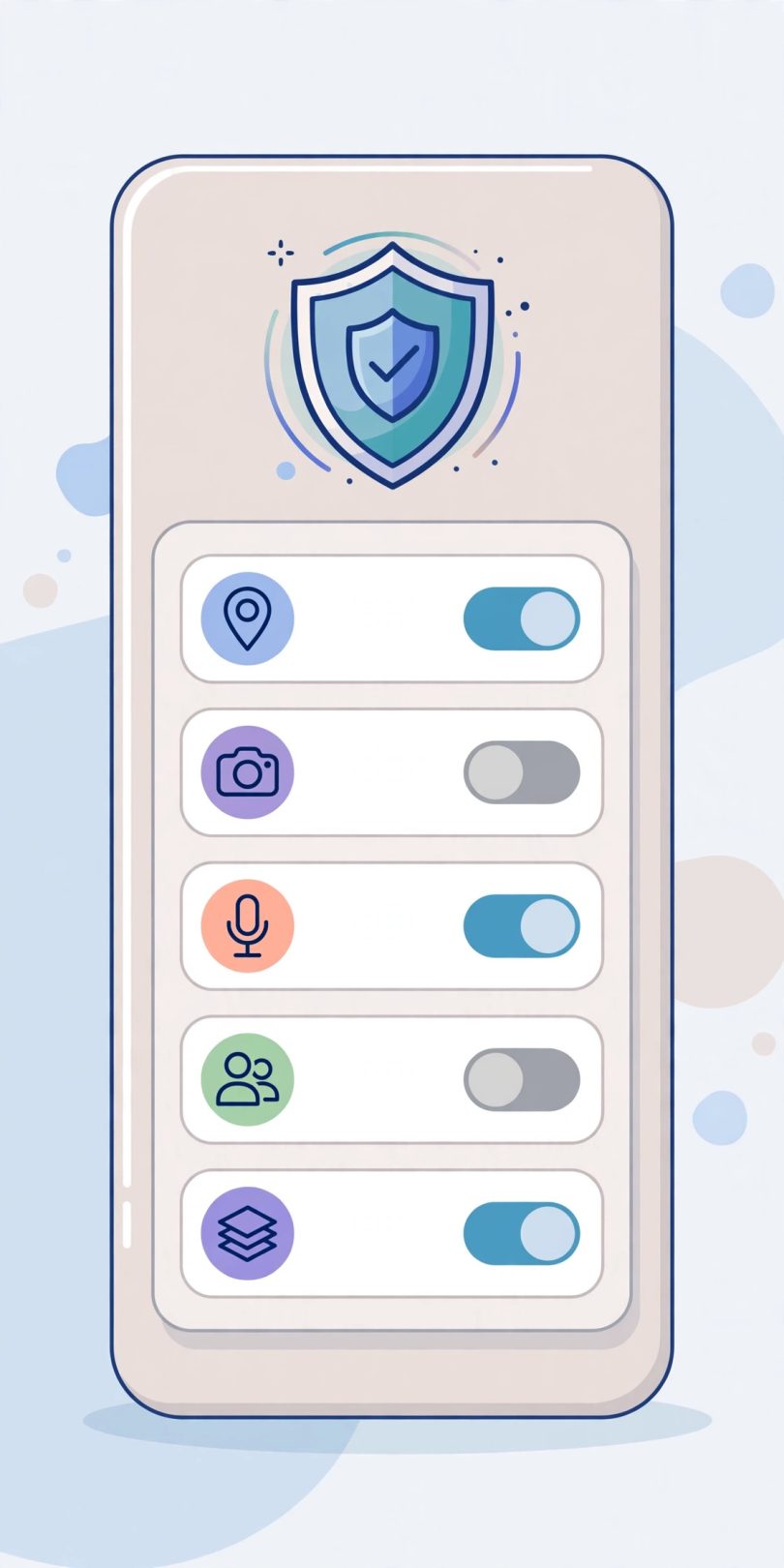


Every time you install a new app, it asks for access to parts of your phone: your camera, your location, your contacts, your files. These requests are called Android app permissions, and they decide how much of your private life an app can see. Most people tap “allow” without thinking, just to reach the next screen. That habit is understandable, but it hands over far more data than most apps actually need. This guide explains the main permissions in plain language, so you can allow what makes sense and block what does not.
Why Permissions Matter More Than You Think
An app with the right permissions can work quietly in the background collecting information you never meant to share. Location data reveals where you live, work, and spend your evenings. Contact access exposes not just your details but the details of everyone you know. Microphone and camera access are even more sensitive, because they can capture the world around you, not just what is stored on the phone.
Not every request is sinister. A maps app genuinely needs your location. A video calling app genuinely needs your camera and microphone. The skill is matching the request to the job. When the connection between the permission and the app’s purpose is clear, allowing it is reasonable. When there is no obvious connection, that is your signal to pause.
The Main Permissions and What They Really Mean
Location comes in two forms: precise, which pinpoints you closely, and approximate, which only knows your general area. Many apps work perfectly well with approximate location, such as weather or news apps. Android also lets you grant location “only while using the app” instead of “all the time”. Choose that option unless the app truly needs background access, like a fitness tracker recording your runs.
Storage and media access lets an app read your photos and files. Modern Android versions let you share selected photos only, instead of your whole library. Use that whenever it appears. Contacts access is needed by messaging apps, but rarely by games, shopping apps, or tools. Notifications are harmless in themselves, yet they are the main channel apps use to pull you back in, so be selective. Understanding these basics turns Android app permissions from a confusing wall of switches into a set of clear, manageable choices.
Permissions You Should Almost Always Block
Some requests are red flags in almost any app. A calculator, flashlight, or wallpaper app asking for your contacts, call history, or text messages has no honest reason for them. Access to your phone call logs is especially abused, because it reveals who you talk to and how often. Accessibility services are another powerful area: they are designed to help users with disabilities, but in the wrong hands they can read your screen and control your phone. Only grant accessibility to apps you fully trust.
Be careful with permission to install other apps and to display over other apps. Both are legitimate for a few tools, but they are also favourites of aggressive adware. If an app you barely know asks for either, the safest answer is no. You can always change your mind later if the app proves itself and genuinely stops working without the access.
How to Review Permissions on Your Phone
You do not need to wait for install time to make these decisions. Open your phone’s settings, go to the apps or privacy section, and open the permission manager. It groups everything by type, so you can see every app that can read your location, your microphone, or your photos in one list. Work through the list one permission at a time. For each app, ask a simple question: does this app need this to do its job?
Android also offers a privacy dashboard that shows which apps used sensitive permissions recently, and how often. If an app you have not opened in days is checking your location every hour, you have learned something important. Removing that access takes seconds: tap the app, tap the permission, and switch it to “don’t allow” or “ask every time”. Reviewing Android app permissions once a month takes less than ten minutes and keeps your choices current as you install and remove apps.
A Simple Rule for Every New App
Here is a rule you can apply in seconds: grant the minimum the app needs to work today, not everything it might want someday. Deny first, and allow later only if a feature you actually use asks for it. Apps are designed to request access at the moment it becomes relevant, for example asking for the camera the first time you tap the photo button. That just-in-time request is much easier to judge than a long list shown during installation.
Also remember that permissions are not permanent decisions carved in stone. You can loosen them for a trusted app and tighten them for one that starts behaving badly. Treat them as an ongoing conversation between you and your phone, not a one-time contract.
One more feature deserves your attention: automatic permission removal. Recent Android versions can strip permissions from apps you have not opened for a long time, and reset them to a safe default. Make sure this setting is switched on. Phones accumulate forgotten apps the way drawers accumulate old cables, and an app you stopped using a year ago should not still be holding access to your microphone, camera, or location.
Teach the same habit to family members, especially anyone less confident with technology. A ten-minute walk through their permission settings, removing the obvious excesses, can protect them from the nosiest apps on their phones. Privacy is easier to maintain together, and the conversation itself makes everyone more thoughtful about the next install.
Conclusion
Your personal data has real value, and Android app permissions are the gates that protect it. Allow access when it clearly matches the app’s purpose, choose the limited options like approximate location and selected photos when they are offered, and block anything that feels unrelated or excessive. A short review every month keeps those gates in good order. With that habit, you stay in control of your phone, instead of your apps being in control of you.